

Table of Contents
How to organize court files digitally: To organize court files digitally, you need a consistent naming system, clearly labeled digital folders for each case, cloud-based storage with proper access controls, and a routine for uploading new documents as soon as they arrive. Done well, this turns hours of searching through cabinets into a few seconds of typing a case name into a search bar.
If you have ever missed a filing deadline because a case file was “with another lawyer,” or spent twenty minutes hunting for a single affidavit buried in a stack of folders, you already know why this matters. Nigeria’s courts are moving toward digital case management too, with the Nigeria Case Management System (NCMS) now live at the Supreme Court and rolling out across state courts. Your own filing system should be moving in the same direction. Here is exactly how to do it, step by step.
Why It’s Time to Organize Court Files Digitally
Nigeria’s judiciary has been sending a clear signal this year. The Federal High Court’s Lagos Division phased out manual filing entirely for its e-filing rollout, and the Chief Judge described the shift as a necessary transformation rather than an optional upgrade. The Supreme Court followed with its own mandatory upload requirements under the 2026 Practice Directions.
That national shift matters for how you run your own practice or manage your own legal matters. Courts referencing your documents, requesting records, or reviewing your filings will increasingly expect digital-ready material. If your own case files are still scattered across desktop folders, WhatsApp attachments, and physical cabinets, you are working against the direction the entire system is heading.
There is also a resilience argument. During a major flood in Borno State, courts that had already moved records to the cloud kept functioning normally, because nothing important was sitting in a filing cabinet that water could ruin. Paper files are fragile in ways many people only notice after something goes wrong.
Learning how to organize court files digitally is not just about tidiness. It protects you from lost evidence, missed deadlines, and the kind of chaos that damages client trust.
Step 1: Choose Where Your Digital Files Will Live
Before you touch a single document, decide where everything will be stored. This single decision shapes everything else, so do not rush it.
For solo practitioners or small firms just starting out, a well-organized cloud storage service can work, provided you add strict folder discipline and access controls. For firms handling higher volumes or more sensitive matters, dedicated legal case management software is worth the investment, since these tools are built specifically to handle case files, deadlines, and document version history.
Whichever option you choose, avoid the common trap of splitting files across multiple, disconnected locations, some documents on a laptop, others in an email inbox, others on a phone. When you organize court files digitally, one consistent home for everything is the whole point.

Step 2: Build One Master Folder Structure for Every Case
Once you know where files will live, create a folder template you will reuse for every single case. Consistency here is what makes searching fast later.
A simple, effective structure looks like this:
- Pleadings (complaints, answers, motions, and other court filings)
- Correspondence (letters, emails, and formal communication)
- Evidence (documents, photos, or exhibits related to the matter)
- Research and Memos (legal research, internal notes, case law)
- Client Communication (meeting notes, call records, instructions)
- Court Orders and Judgments (rulings, orders, and final decisions)
Create this same structure inside every case folder, every time. When you organize court files digitally using one repeatable template, you never have to think twice about where a document belongs, and neither does anyone else on your team.
Step 3: Create a Naming Convention You’ll Actually Stick To
Folders alone are not enough. File names matter just as much, especially once you are searching across dozens or hundreds of cases.
A reliable format looks something like this:
ClientName_CaseNumber_DocumentType_Date
For example: Adeyemi_FHC-L-2026-114_Motion-for-Extension_2026-07-15
This kind of naming convention means you can find a specific document by typing a client’s name, a date, or a document type into a search bar, without opening a single folder. It also prevents the classic problem of five different files all named “Final_Final_v2.”
Whatever format you choose, write it down, share it with your team, and use it every single time. A naming convention only works if everyone follows it the same way.
Step 4: Digitise Existing Paper Files the Smart Way
If you already have years of paper files, do not try to digitise everything overnight. That approach usually stalls after a few frustrating days.
Instead, prioritise by urgency:
- Start with active, open cases first, since these carry real deadlines.
- Move to cases with upcoming hearings or filing dates next.
- Digitise closed or archived files last, on a slower, ongoing schedule.
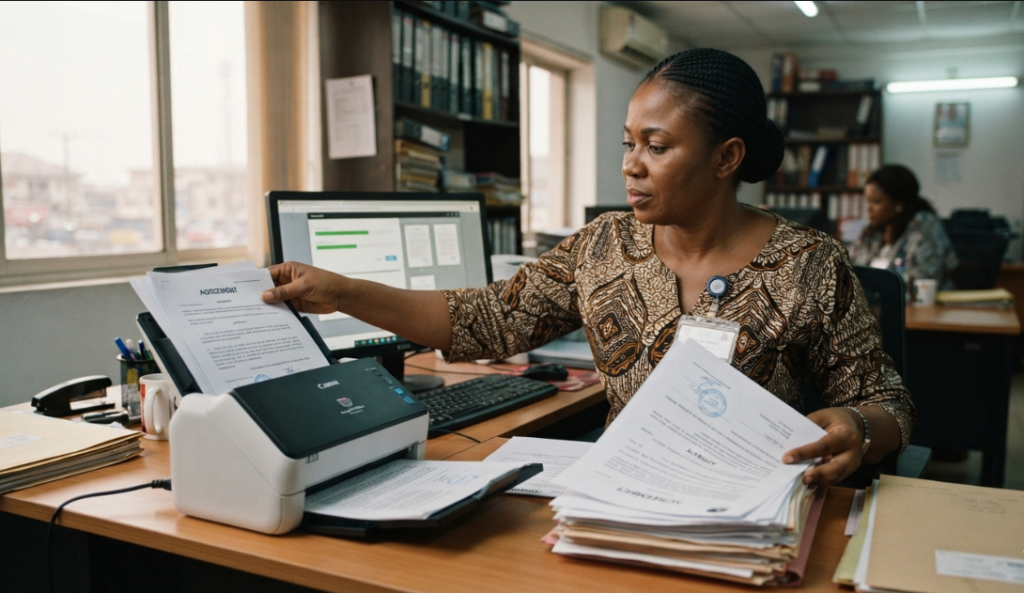
Use a proper document scanner rather than phone photos where possible, since scanners produce cleaner, more searchable files and often include optical character recognition, which lets you search the actual text inside a scanned document, not just its file name.
As you scan, apply your folder structure and naming convention immediately. Do not create a “sort later” pile; it rarely gets sorted.
Step 5: Set Up Access Controls and Security
Court files often contain sensitive client information, so security cannot be an afterthought. This is one of the most overlooked parts of learning how to organize court files digitally.
At a minimum, put these protections in place:
- Password protection on your storage system, with strong, unique passwords
- Two-factor authentication wherever it is available
- Permission levels, so only people who need access to a case can open it
- Encrypted storage or transmission for particularly sensitive documents
Nigeria’s Federal High Court has already built accountability into its own digital filing process by ensuring every action leaves a traceable digital footprint. Your own system should aim for the same standard: it should always be clear who accessed a file, and when.
Step 6: Build a Habit Around Uploading New Documents
A digital filing system only stays organized if new documents are added consistently, not in occasional, overwhelming batches.
Set a simple rule: any document related to a case gets scanned or saved, named correctly, and filed in the right folder the same day it arrives, not “sometime this week.” This is far easier to maintain than it sounds once it becomes routine, and it is the difference between a filing system that works and one that quietly falls apart after a month.
If you work with a team, assign clear responsibility for this task on each case, so no one assumes someone else has already handled it.
Step 7: Use Tags, Indexes, and Search to Save Time
Folders and file names get you most of the way there, but tags and indexes add another layer of speed once your volume of cases grows.
Many legal case management tools let you tag documents by case type, court, status, or deadline. This means you can pull up every pending motion, every case in a specific court, or every document tied to a particular client, in seconds, regardless of which folder it happens to sit in.
If your storage tool has a strong search function, make sure your naming convention and any text inside scanned documents are searchable. That combination, consistent names plus searchable text, is often more powerful than any folder structure on its own.
Step 8: Back Up Everything, More Than Once
Digital files feel safer than paper, but they are not immune to risk. Hard drives fail, accounts get compromised, and mistakes happen.
Follow a simple rule that many IT professionals recommend: keep at least three copies of important files, on two different types of storage, with one copy stored somewhere separate from your main office or device. In practice, that might mean your primary cloud storage, an automatic backup service, and an external drive kept off-site.
Test your backups occasionally too. A backup you have never actually tried to restore from is a backup you cannot fully trust.
Step 9: Review and Clean Up Regularly
Even a well-built system drifts over time as documents pile up and cases close. Set a recurring reminder, monthly or quarterly, to review your digital files.
During this review, archive closed cases into a separate, clearly labeled section, correct any files that were misnamed or misfiled in the rush of daily work, and confirm that your backup system is still running properly.
This regular maintenance is what separates a filing system that stays useful for years from one that becomes just as messy as the paper cabinets it replaced.

Common Mistakes to Avoid
A few mistakes come up again and again when lawyers and firms try to organize court files digitally for the first time.
Inconsistent naming. Mixing formats, some files named by date, others by client, others by case number, defeats the entire purpose of a system.
No access controls. Storing sensitive client documents in a shared folder with no permissions is a serious risk, not a convenience.
Skipping backups. Assuming cloud storage alone is “safe enough” without a separate backup has cost people entire case histories after account issues or accidental deletions.
Letting the backlog grow. Waiting until you have hundreds of unsorted documents makes the task feel impossible. Small, consistent effort beats occasional, overwhelming cleanup sessions.
Working across too many tools. Splitting documents between email, a phone, a laptop, and a shared drive means you will eventually lose track of where something actually lives.
What is the best way to organize court files digitally for a small firm?
Start with one consistent folder structure per case, a clear naming convention, and cloud storage with basic access controls. You can add case management software later as your volume grows.
Should I keep paper copies after digitising court files?
For now, yes, especially for original court-issued documents. Many Nigerian courts still expect physical filing alongside electronic uploads during this transition period, so a paper-lite approach, not a fully paperless one, is often the practical choice.
How often should I back up digital case files?
Automatic, continuous backup is ideal. At a minimum, back up manually every week, and always confirm important documents saved correctly right after uploading them.
Can I use general tools like Google Drive to organize court files digitally?
Yes, for smaller practices, provided you add strict folder structure, naming rules, and permission settings. As your caseload grows, dedicated legal document management tools offer stronger security and features built specifically for court files.
If you are already researching Nigerian court procedures or case law as part of your practice, having a reliable, searchable place to check laws and regulations makes the rest of this system even more useful, and Lexark’s search tools are built for exactly that kind of quick reference.
Start with just one case today: pick a folder structure, rename the files inside it properly, and see how much faster you can find what you need tomorrow.